

Warehousing
The Warehousing page allows users to manage and track stock levels in different stockpiles within a warehouse. It displays detailed information about the warehouse’s capacity, the stock available, and allows users to add new stock to the inventory. The page features a button to Add Warehousing, which opens a modal for users to input the necessary details for stock management.
Add Wirehousing
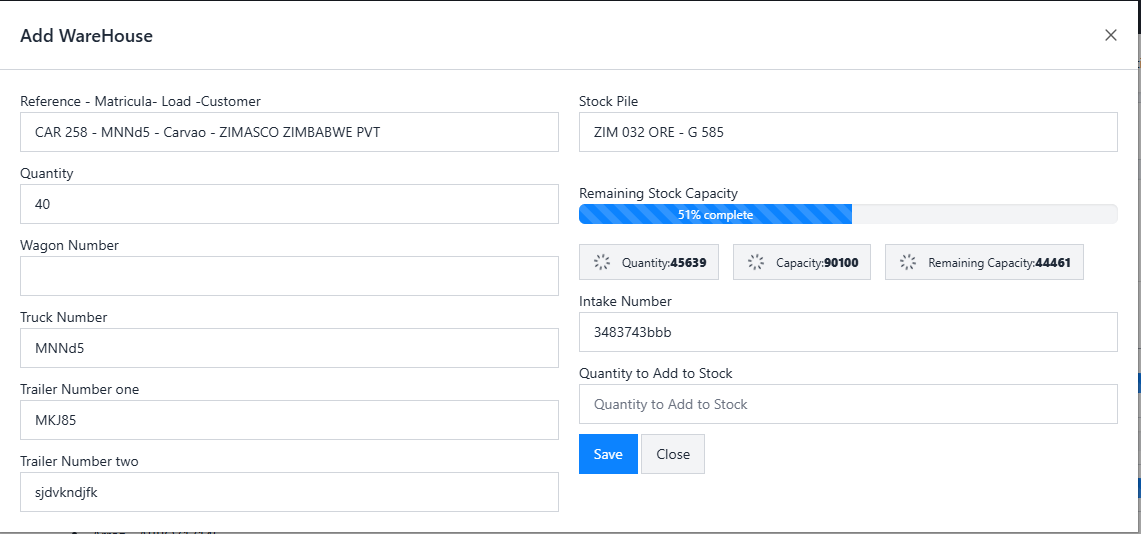
This section allows users to add stock to a specific stockpile. When the user clicks the Add Warehousing button, a modal opens with the following fields:
- Reference: A select field that combines matricula, load, and customer information.
- Stock Pile: A select field that allows users to choose the stockpile to which the stock will be added.
- Quantity: A dynamic field that updates based on the selected Reference.
- Wagon Number: A dynamic field that appears depending on the selected reference.
- Truck Number: A dynamic field that appears based on the selected reference.
- Trailer Number One and Two: Dynamic fields based on the selected reference.
- Intake Number: A select field for choosing the intake number.
- Quantity to Add to Stock: A field where users input the quantity of stock to be added to the selected stockpile.
Table
The table displays the current stock information for each stockpile, including the quantity available and other relevant details. This allows users to quickly verify the stock levels in different locations.
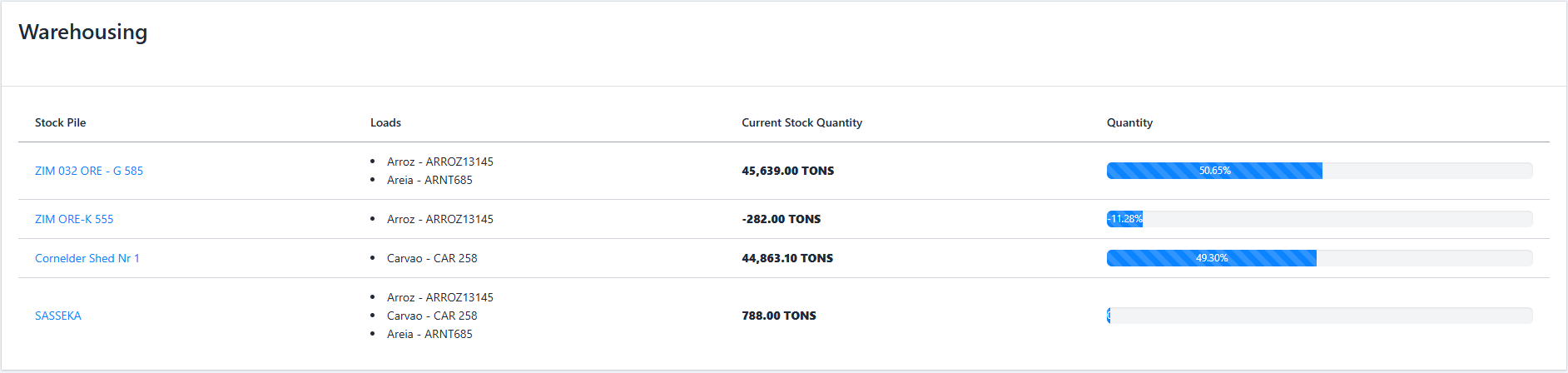
This table provides an overview of all stock in the warehouse, showing each stockpile's capacity and the current stock levels. The information helps users keep track of stock movement and warehouse organization.
Details
When the user clicks on a Stock Pile in the table, they are redirected to the Stockpile Details Page, which shows the following details:
- Offloading User: Displays the user responsible for offloading the stock.
- Reference: Shows the reference associated with the stock (matricula, load, and customer).
- Proof of Receipt: A field displaying the proof of receipt of the stock.
- Load Name: Shows the name of the load.
- Customer: Displays the name of the customer associated with the stock.
- Weightbridge: Shows the weightbridge data for the stock.
- No of Bags: Displays the number of bags (if applicable).
- Truck Number: Displays the truck number used for the transport.
- Trailer Number One and Two: Displays the trailer numbers used for transport.
- Wagon Number: Displays the wagon number used for transport, if applicable.
- Restore: A button that allows users to restore the stock to a previous state if necessary.
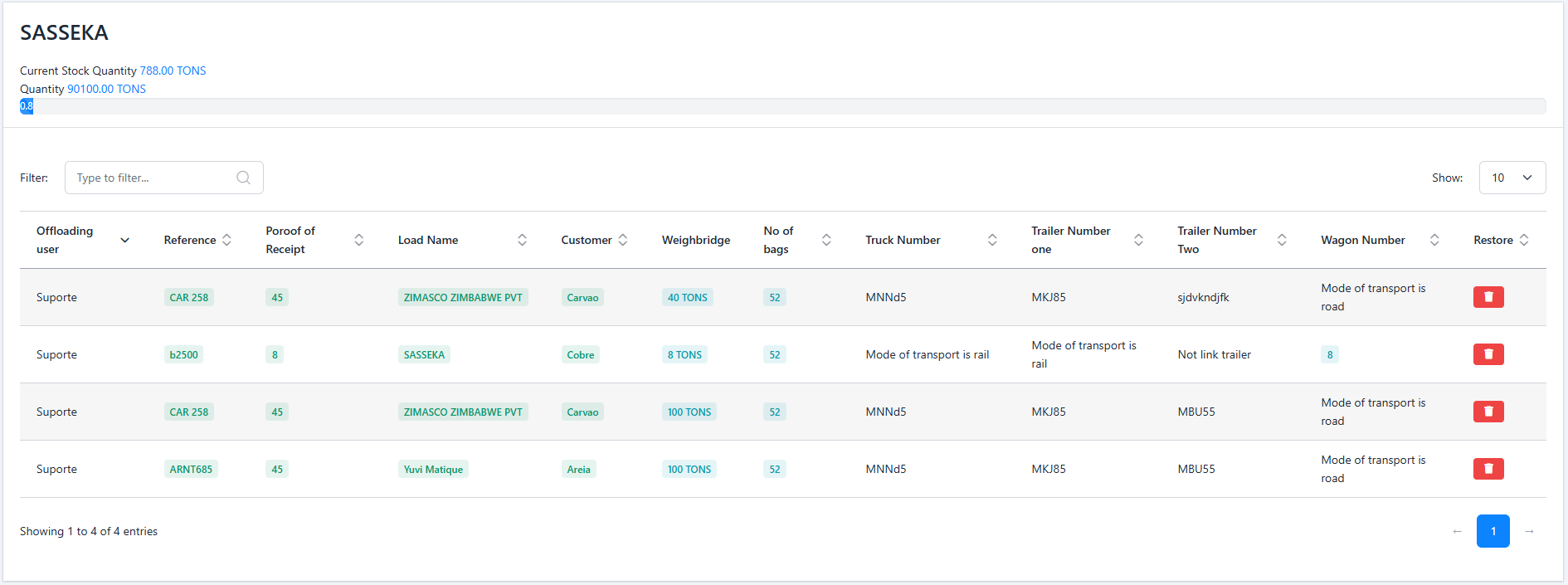
This page gives a comprehensive overview of the selected stockpile, with all relevant details for tracking and managing the stock stored in that location.